> ## Documentation Index
> Fetch the complete documentation index at: https://docs.mantle.chat/llms.txt
> Use this file to discover all available pages before exploring further.
# Linear
> Manage Linear without leaving Mantle — create issues from conversations, automate workflows, and keep channels in sync
Connect your Linear API key and unlock these capabilities: create and link issues from any chat message, keep channels
updated with real-time notifications, give AI agents 31 built-in tools to act across your workspace, and fire tasks
automatically when issues change.
***
## What you unlock
Create a Linear issue, link an existing one, or add a comment — directly from any chat message, without switching
tabs.
Subscribe any channel to a Linear team or project and receive instant notifications when issues are created,
updated, or commented on.
Give your AI agent full read/write access to Linear — issues, projects, milestones, teams, documents, comments, and
more.
Start an agent task automatically when something changes in Linear — new issue, status change, comment, priority
update, or assignment.
***
## Connect Linear
In any workspace go to **Settings → Integrations** and select **Linear**.
Open [linear.app/settings/api](https://linear.app/settings/api), create a personal API key, and copy it — it starts with `lin_api_`.
Paste the key into the **API Key** field and click **Connect**.
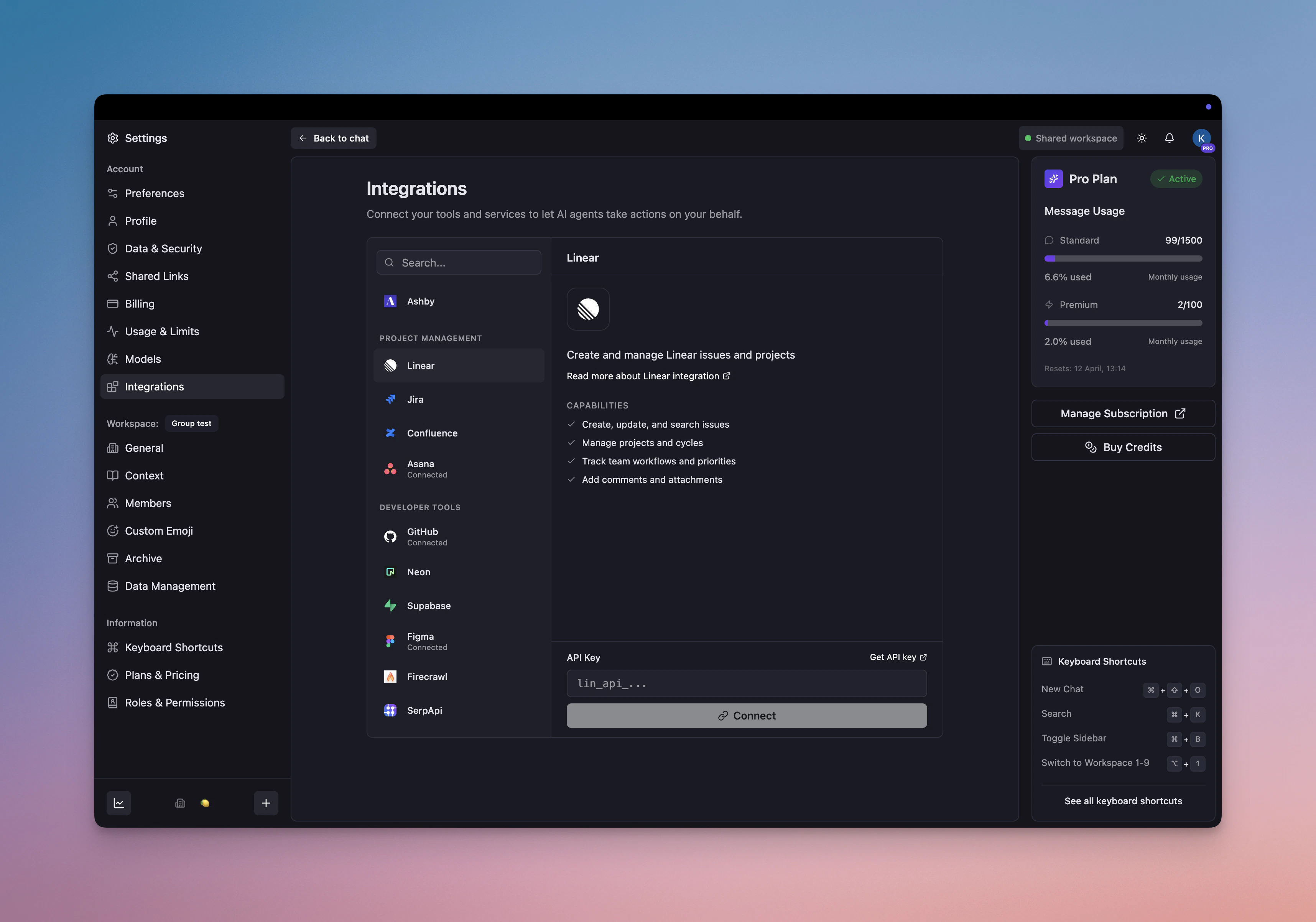 One API key unlocks agent tools, issue actions in chat, and channel notifications — all three. Triggers require an
additional one-time webhook authorisation, described below.
***
## Issue actions in chat
Once connected, every chat message gets a **More actions** menu (···) with three Linear shortcuts.
### Create an issue from a message
Turn any message into a Linear issue in seconds — no copy-pasting required.
1. Hover over the message and click **More actions (···) → Create Linear issue…**
2. A panel slides in with the title and description pre-filled from the message.
3. Set the team, status, priority, assignee, project, and labels.
4. Click **Create Issue** — the issue is created and you get a confirmation with the link.
### Link an existing issue
Attach a reference to an existing Linear issue so the conversation stays connected to the work.
1. Click **More actions → Link Linear issue…**
2. Search by title or identifier (e.g. `NUL-123`).
3. Select the issue and click **Link Issue**.
Enable **Sync comments** when linking — you'll receive a chat notification whenever a new comment is added to that issue
in Linear.
### Add a comment to an issue
Post the message content directly as a comment on any Linear issue.
1. Click **More actions → Add comment to issue…**
2. Search for and select the target issue.
3. Click **Add Comment** — the message is posted as a comment in Linear.
***
## Channel notifications
Subscribe a channel to a Linear team or project to receive real-time system messages whenever issues change — no bots,
no polling.
Right-click any channel in the sidebar and select **Integrations**.
Choose a Linear team (and optionally a specific project), then pick which events to follow.
| Event | Default |
| ---------------- | ------- |
| Issue created | On |
| Status changed | On |
| Comment added | On |
| Priority changed | Off |
| Issue assigned | Off |
Linear delivers a system message to the channel in real time whenever a matching event occurs.
***
## Agent tools
Any agent in your workspace can use all 31 Linear tools the moment an API key is connected.
### Issues
| Tool | Description |
| ------------------- | ------------------------------------------------------------------------------------------------ |
| Get issue | Retrieve detailed information about an issue, including attachments and git branch name |
| List issues | List issues in the workspace. Use `"me"` for your own issues; `"null"` for unassigned |
| Save issue | Create or update an issue. Provide `id` to update; `title` and `team` are required when creating |
| List issue statuses | List available workflow statuses in a team |
| Get issue status | Retrieve a status by name or ID |
| List issue labels | List labels in a workspace or team |
| Create issue label | Create a new issue label |
### Comments
| Tool | Description |
| -------------- | --------------------------------------------------------------------------------------------------- |
| List comments | List comments on a specific issue |
| Save comment | Create or update a comment. Provide `id` to update; `issueId` and `body` are required when creating |
| Delete comment | Delete a comment from an issue |
### Projects & Milestones
| Tool | Description |
| ------------------- | ----------------------------------------------------------------------------------------------------------- |
| List projects | List projects in the workspace |
| Get project | Retrieve details of a specific project |
| Save project | Create or update a project. Provide `id` to update; `name` and at least one team are required when creating |
| List project labels | List available project labels |
| List milestones | List all milestones in a project |
| Get milestone | Retrieve a milestone by ID or name |
| Save milestone | Create or update a milestone. Provide `id` to update; `name` is required when creating |
### Documents
| Tool | Description |
| --------------- | ------------------------------------------------------------------------------------------------ |
| Get document | Retrieve a document by ID or slug |
| List documents | List documents in the workspace |
| Create document | Create a new document |
| Update document | Update an existing document |
| Extract images | Extract and return images embedded in markdown content (issue descriptions, comments, documents) |
### Attachments
| Tool | Description |
| ----------------- | ------------------------------------------------------------- |
| Get attachment | Retrieve an attachment's content by ID |
| Create attachment | Upload base64-encoded content as a new attachment on an issue |
| Delete attachment | Delete an attachment by ID |
### Teams, Users & More
| Tool | Description |
| -------------------- | ----------------------------------- |
| List teams | List teams in the workspace |
| Get team | Retrieve details of a specific team |
| List users | List users in the workspace |
| Get user | Retrieve details of a specific user |
| List cycles | Retrieve cycles for a specific team |
| Search documentation | Search Linear's own documentation |
***
## Triggers
Triggers fire an agent task automatically — in real time, via webhook — when something changes in Linear. They require a
one-time webhook authorisation separate from the API key.
Open any agent, go to the **Tasks** tab, and add a new task. In the trigger picker, choose **Integration → Linear**.
Pick one or more of the five available events.
| Event | When it fires |
| ---------------- | -------------------------------------------- |
| Issue created | A new issue is created in your workspace |
| Status changed | An issue moves to a different workflow state |
| Priority changed | An issue's priority is updated |
| Issue assigned | An issue is assigned or unassigned |
| Comment added | A new comment is posted on an issue |
The first time you save a Linear trigger task, Mantle prompts you to authorise the webhook connection. This lets Linear push events directly to your workspace.
***
## Example use cases
Someone reports a bug in chat. Instead of switching to Linear and re-typing everything, click **More actions → Create Linear issue** — the title and description are already filled in from the message. Add the team and priority, click Create.
Subscribe your #engineering channel to a Linear team. Every new issue, status change, and comment shows up as a system message — the whole team stays in sync without anyone having to watch Linear directly.
**Trigger:** Issue created
When a new issue is created, an agent reads the title and description, labels it, sets priority, assigns it to the right person, and posts a triage summary to the team channel.
**Trigger:** Status changed
When an issue moves to "In Review", the agent posts a message in the relevant channel with a summary and a direct link — no manual status updates needed.
***
## Troubleshooting
Make sure the key starts with `lin_api_` and was created at
[linear.app/settings/api](https://linear.app/settings/api). Personal keys give access to all teams your account
belongs to. If it still fails, delete the key in Linear, generate a fresh one, and paste it again.
These actions only show for users with a valid Linear API key. Go to **Settings → Integrations → Linear** and
connect your key.
The notification panel needs a valid Linear API key to fetch your teams and projects. Connect one under **Settings →
Integrations → Linear** first.
1. Confirm the task is **active** (green indicator on the Tasks tab). 2. Check that the trigger is set to **Linear**
with the right events selected. 3. Verify the webhook was authorised — re-authorise if it expired.
Personal API keys have write access by default. If creation fails, check that your Linear account has permission to
create issues in the target team.
***
View all available integrations
One API key unlocks agent tools, issue actions in chat, and channel notifications — all three. Triggers require an
additional one-time webhook authorisation, described below.
***
## Issue actions in chat
Once connected, every chat message gets a **More actions** menu (···) with three Linear shortcuts.
### Create an issue from a message
Turn any message into a Linear issue in seconds — no copy-pasting required.
1. Hover over the message and click **More actions (···) → Create Linear issue…**
2. A panel slides in with the title and description pre-filled from the message.
3. Set the team, status, priority, assignee, project, and labels.
4. Click **Create Issue** — the issue is created and you get a confirmation with the link.
### Link an existing issue
Attach a reference to an existing Linear issue so the conversation stays connected to the work.
1. Click **More actions → Link Linear issue…**
2. Search by title or identifier (e.g. `NUL-123`).
3. Select the issue and click **Link Issue**.
Enable **Sync comments** when linking — you'll receive a chat notification whenever a new comment is added to that issue
in Linear.
### Add a comment to an issue
Post the message content directly as a comment on any Linear issue.
1. Click **More actions → Add comment to issue…**
2. Search for and select the target issue.
3. Click **Add Comment** — the message is posted as a comment in Linear.
***
## Channel notifications
Subscribe a channel to a Linear team or project to receive real-time system messages whenever issues change — no bots,
no polling.
Right-click any channel in the sidebar and select **Integrations**.
Choose a Linear team (and optionally a specific project), then pick which events to follow.
| Event | Default |
| ---------------- | ------- |
| Issue created | On |
| Status changed | On |
| Comment added | On |
| Priority changed | Off |
| Issue assigned | Off |
Linear delivers a system message to the channel in real time whenever a matching event occurs.
***
## Agent tools
Any agent in your workspace can use all 31 Linear tools the moment an API key is connected.
### Issues
| Tool | Description |
| ------------------- | ------------------------------------------------------------------------------------------------ |
| Get issue | Retrieve detailed information about an issue, including attachments and git branch name |
| List issues | List issues in the workspace. Use `"me"` for your own issues; `"null"` for unassigned |
| Save issue | Create or update an issue. Provide `id` to update; `title` and `team` are required when creating |
| List issue statuses | List available workflow statuses in a team |
| Get issue status | Retrieve a status by name or ID |
| List issue labels | List labels in a workspace or team |
| Create issue label | Create a new issue label |
### Comments
| Tool | Description |
| -------------- | --------------------------------------------------------------------------------------------------- |
| List comments | List comments on a specific issue |
| Save comment | Create or update a comment. Provide `id` to update; `issueId` and `body` are required when creating |
| Delete comment | Delete a comment from an issue |
### Projects & Milestones
| Tool | Description |
| ------------------- | ----------------------------------------------------------------------------------------------------------- |
| List projects | List projects in the workspace |
| Get project | Retrieve details of a specific project |
| Save project | Create or update a project. Provide `id` to update; `name` and at least one team are required when creating |
| List project labels | List available project labels |
| List milestones | List all milestones in a project |
| Get milestone | Retrieve a milestone by ID or name |
| Save milestone | Create or update a milestone. Provide `id` to update; `name` is required when creating |
### Documents
| Tool | Description |
| --------------- | ------------------------------------------------------------------------------------------------ |
| Get document | Retrieve a document by ID or slug |
| List documents | List documents in the workspace |
| Create document | Create a new document |
| Update document | Update an existing document |
| Extract images | Extract and return images embedded in markdown content (issue descriptions, comments, documents) |
### Attachments
| Tool | Description |
| ----------------- | ------------------------------------------------------------- |
| Get attachment | Retrieve an attachment's content by ID |
| Create attachment | Upload base64-encoded content as a new attachment on an issue |
| Delete attachment | Delete an attachment by ID |
### Teams, Users & More
| Tool | Description |
| -------------------- | ----------------------------------- |
| List teams | List teams in the workspace |
| Get team | Retrieve details of a specific team |
| List users | List users in the workspace |
| Get user | Retrieve details of a specific user |
| List cycles | Retrieve cycles for a specific team |
| Search documentation | Search Linear's own documentation |
***
## Triggers
Triggers fire an agent task automatically — in real time, via webhook — when something changes in Linear. They require a
one-time webhook authorisation separate from the API key.
Open any agent, go to the **Tasks** tab, and add a new task. In the trigger picker, choose **Integration → Linear**.
Pick one or more of the five available events.
| Event | When it fires |
| ---------------- | -------------------------------------------- |
| Issue created | A new issue is created in your workspace |
| Status changed | An issue moves to a different workflow state |
| Priority changed | An issue's priority is updated |
| Issue assigned | An issue is assigned or unassigned |
| Comment added | A new comment is posted on an issue |
The first time you save a Linear trigger task, Mantle prompts you to authorise the webhook connection. This lets Linear push events directly to your workspace.
***
## Example use cases
Someone reports a bug in chat. Instead of switching to Linear and re-typing everything, click **More actions → Create Linear issue** — the title and description are already filled in from the message. Add the team and priority, click Create.
Subscribe your #engineering channel to a Linear team. Every new issue, status change, and comment shows up as a system message — the whole team stays in sync without anyone having to watch Linear directly.
**Trigger:** Issue created
When a new issue is created, an agent reads the title and description, labels it, sets priority, assigns it to the right person, and posts a triage summary to the team channel.
**Trigger:** Status changed
When an issue moves to "In Review", the agent posts a message in the relevant channel with a summary and a direct link — no manual status updates needed.
***
## Troubleshooting
Make sure the key starts with `lin_api_` and was created at
[linear.app/settings/api](https://linear.app/settings/api). Personal keys give access to all teams your account
belongs to. If it still fails, delete the key in Linear, generate a fresh one, and paste it again.
These actions only show for users with a valid Linear API key. Go to **Settings → Integrations → Linear** and
connect your key.
The notification panel needs a valid Linear API key to fetch your teams and projects. Connect one under **Settings →
Integrations → Linear** first.
1. Confirm the task is **active** (green indicator on the Tasks tab). 2. Check that the trigger is set to **Linear**
with the right events selected. 3. Verify the webhook was authorised — re-authorise if it expired.
Personal API keys have write access by default. If creation fails, check that your Linear account has permission to
create issues in the target team.
***
View all available integrations